> ## Documentation Index
> Fetch the complete documentation index at: https://developer.kyberis.ai/llms.txt
> Use this file to discover all available pages before exploring further.
# Codex Desktop Setup
> Connect Codex Desktop to Kyberis MCP and install the Kyberis skill.
Use this guide to add Kyberis to Codex Desktop. MCP gives Codex callable Kyberis tools. The Kyberis skill gives Codex investigation instructions for resolving entities, collecting evidence, pivoting relationships, and running assessments.
## Prerequisites
* Codex Desktop installed and signed in
* A Kyberis account with access to the workspace you want Codex to use
* [Node.js 20 or newer with `npx`](/install/node-npx) for installing the Kyberis skill
* Permission to authenticate the Kyberis MCP server through your browser
Do not paste API keys, access tokens, or bearer tokens into screenshots, commits, issues, or shared chat logs. Use the Codex Desktop OAuth login flow for MCP when possible. Store long-lived credentials in a local secret manager or another secure local store.
## 1. Open Codex Desktop Settings
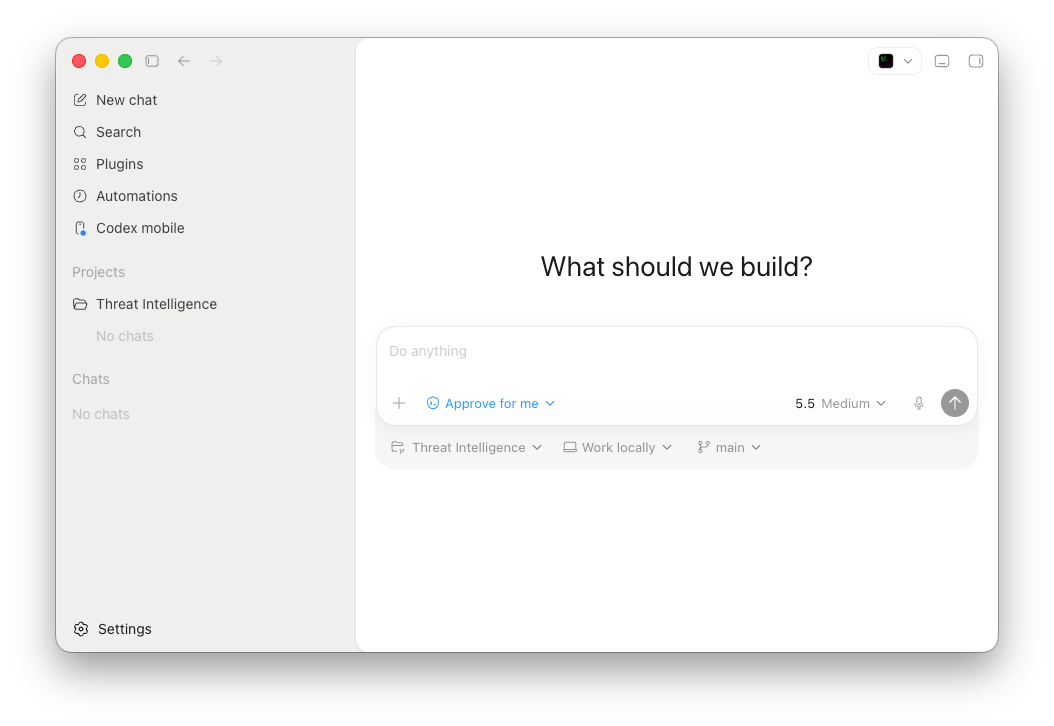
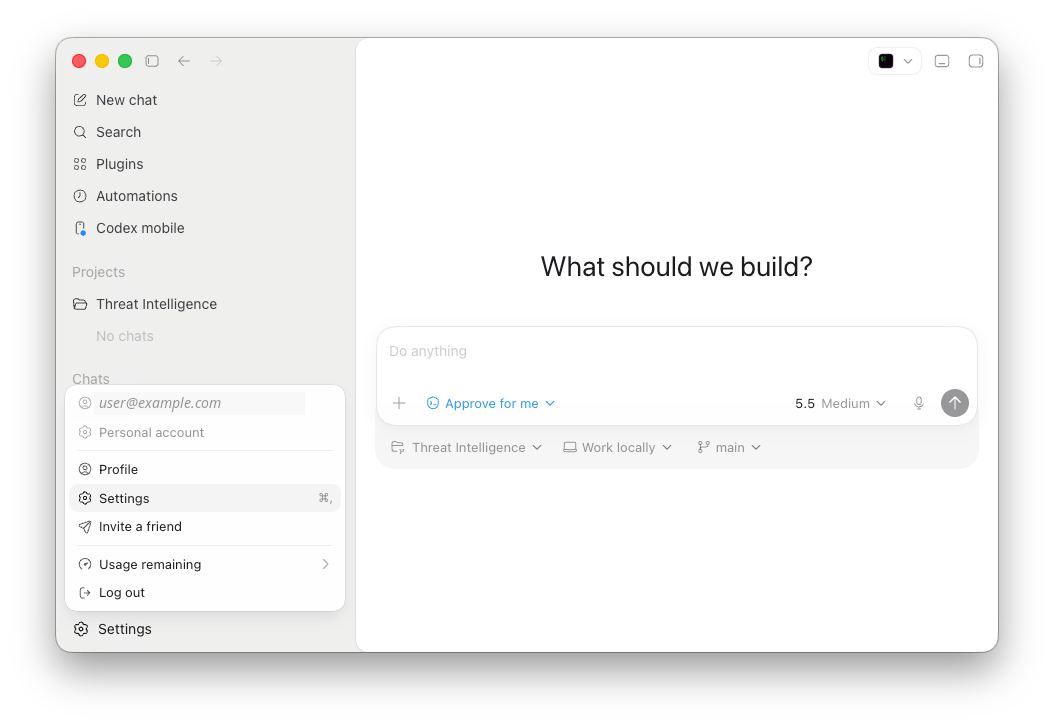
Open Codex Desktop and select **Settings** from the lower-left account menu.
 ## 2. Open MCP Servers
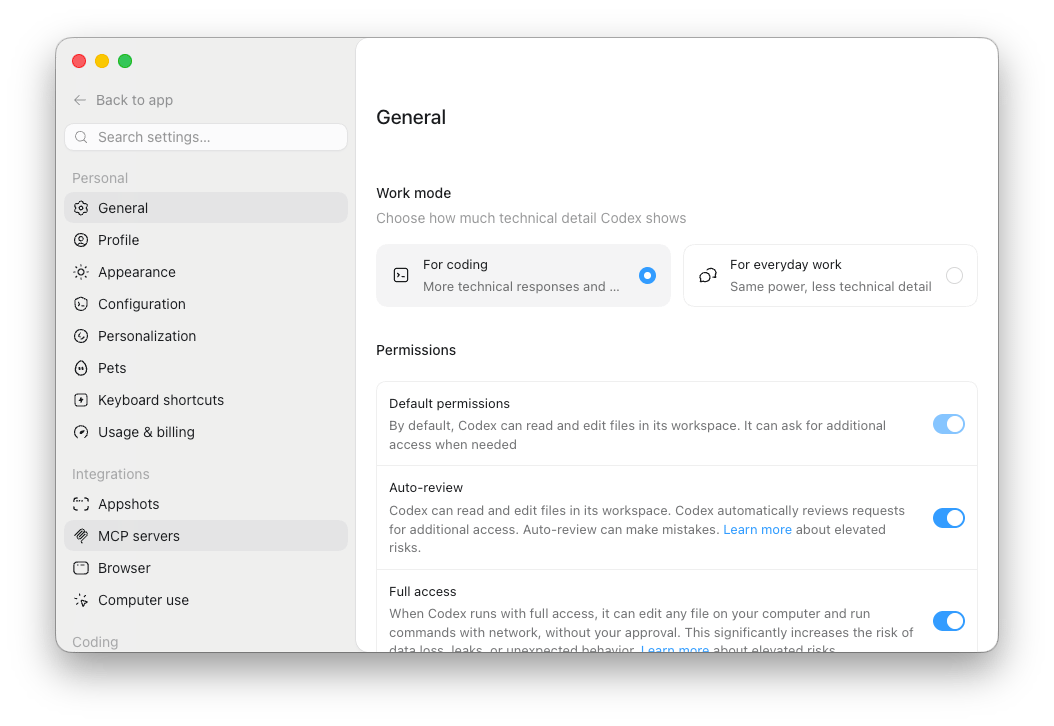
In **Settings**, select **MCP servers** under **Integrations**.
## 2. Open MCP Servers
In **Settings**, select **MCP servers** under **Integrations**.
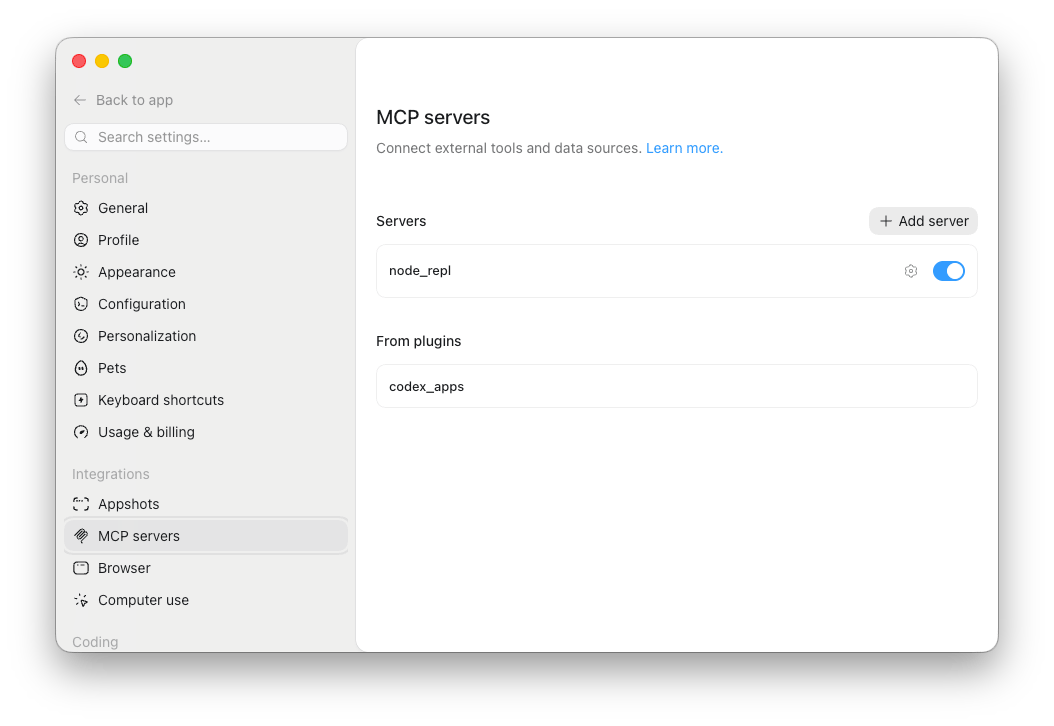
 Select **Add server**.
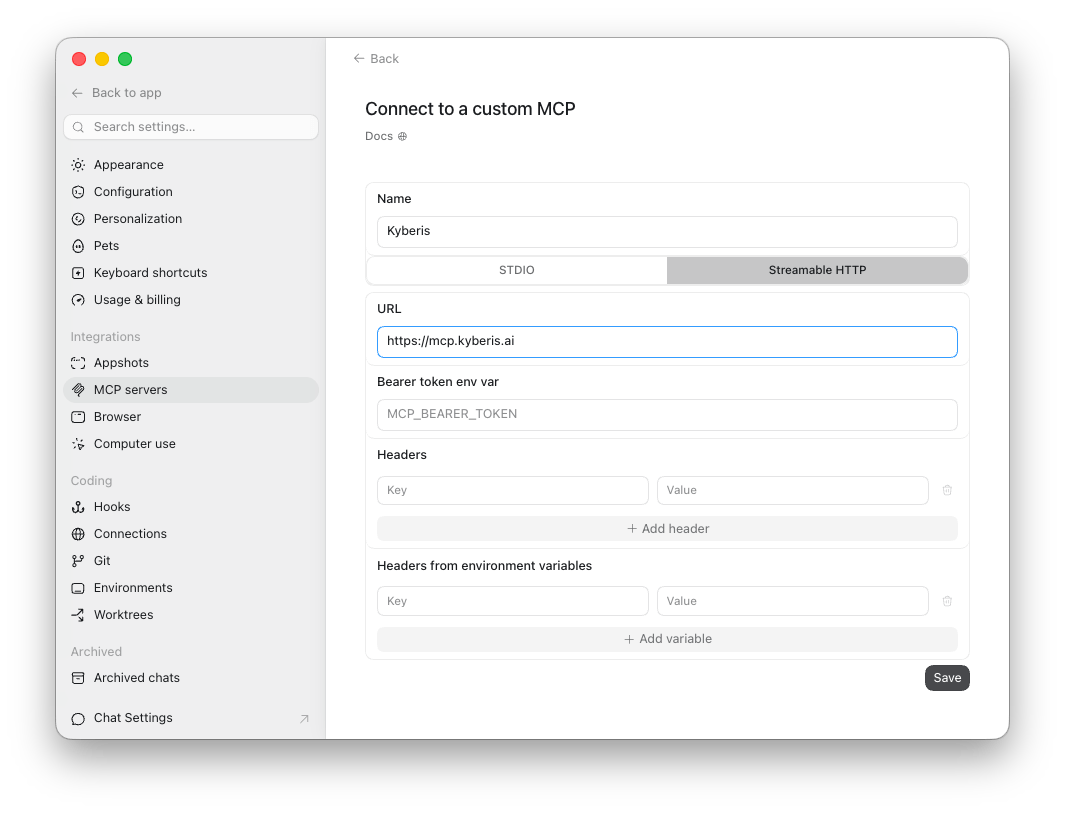
 ## 3. Add the Kyberis MCP Server
Create a custom MCP server:
| Field | Value |
| ------------- | ------------------------ |
| **Name** | `Kyberis` |
| **Transport** | **Streamable HTTP** |
| **URL** | `https://mcp.kyberis.ai` |
Leave token and header fields empty unless your Kyberis administrator gives you a specific credential flow. Select **Save**.
## 3. Add the Kyberis MCP Server
Create a custom MCP server:
| Field | Value |
| ------------- | ------------------------ |
| **Name** | `Kyberis` |
| **Transport** | **Streamable HTTP** |
| **URL** | `https://mcp.kyberis.ai` |
Leave token and header fields empty unless your Kyberis administrator gives you a specific credential flow. Select **Save**.
 ## 4. Authenticate MCP
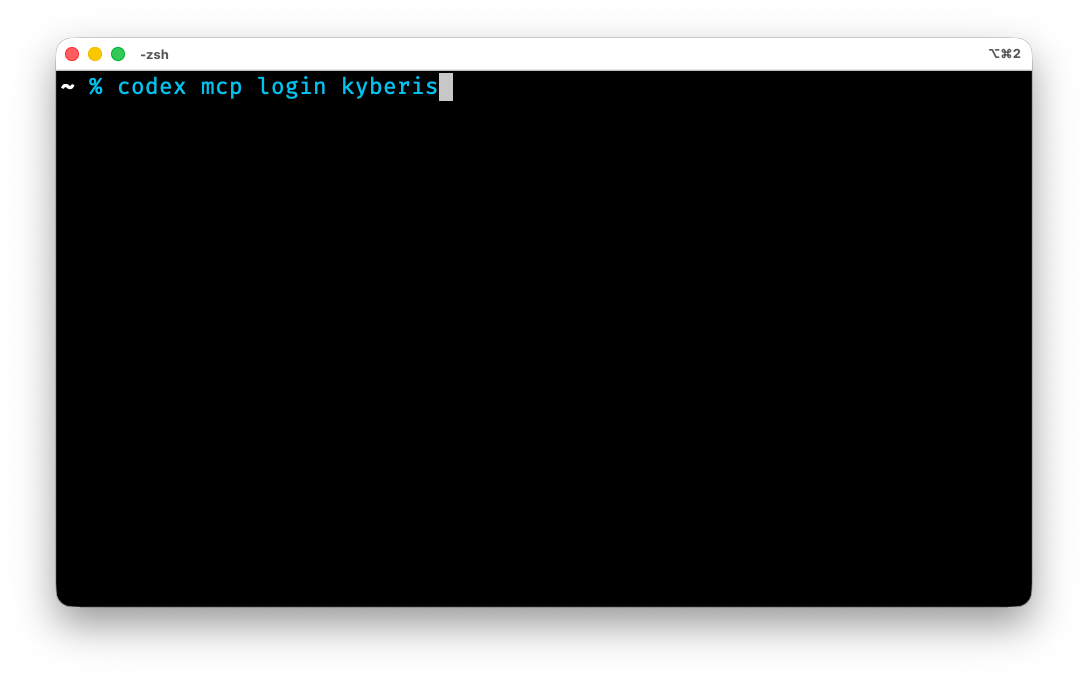
Open a terminal and run:
```bash theme={null}
codex mcp login kyberis
```
Use the same server name you entered in Codex Desktop. If Codex registered the server as `Kyberis`, use:
```bash theme={null}
codex mcp login Kyberis
```
Codex prints an authorization URL. Open it in your browser and complete the Kyberis login.
## 4. Authenticate MCP
Open a terminal and run:
```bash theme={null}
codex mcp login kyberis
```
Use the same server name you entered in Codex Desktop. If Codex registered the server as `Kyberis`, use:
```bash theme={null}
codex mcp login Kyberis
```
Codex prints an authorization URL. Open it in your browser and complete the Kyberis login.
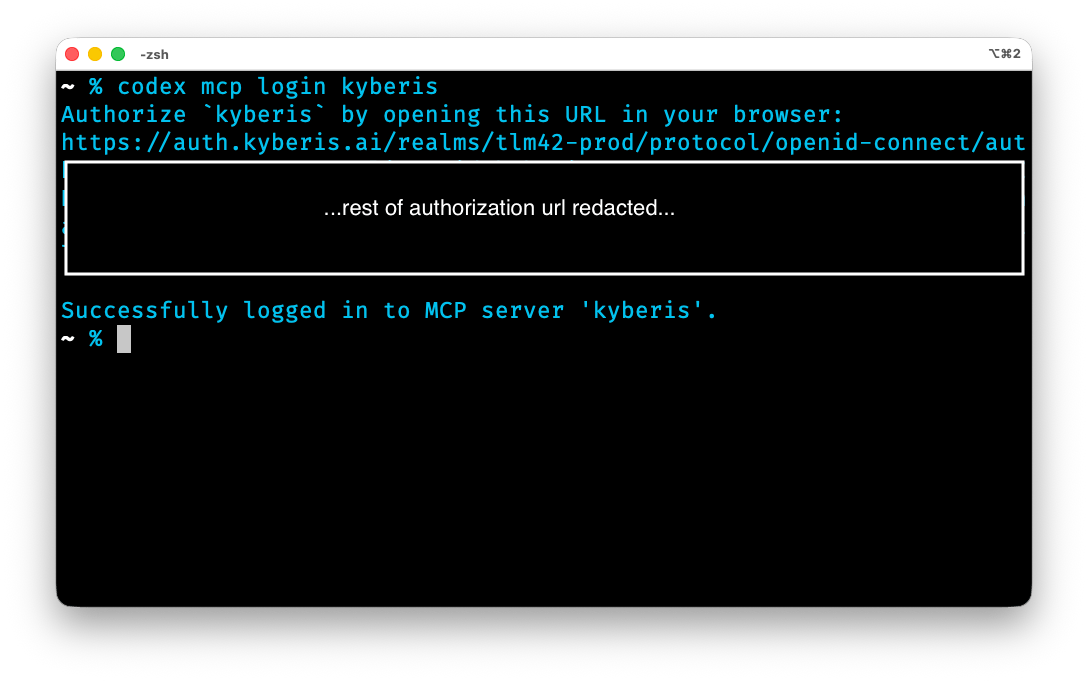
 After you complete auth, Codex reports that it logged in to the Kyberis MCP server.
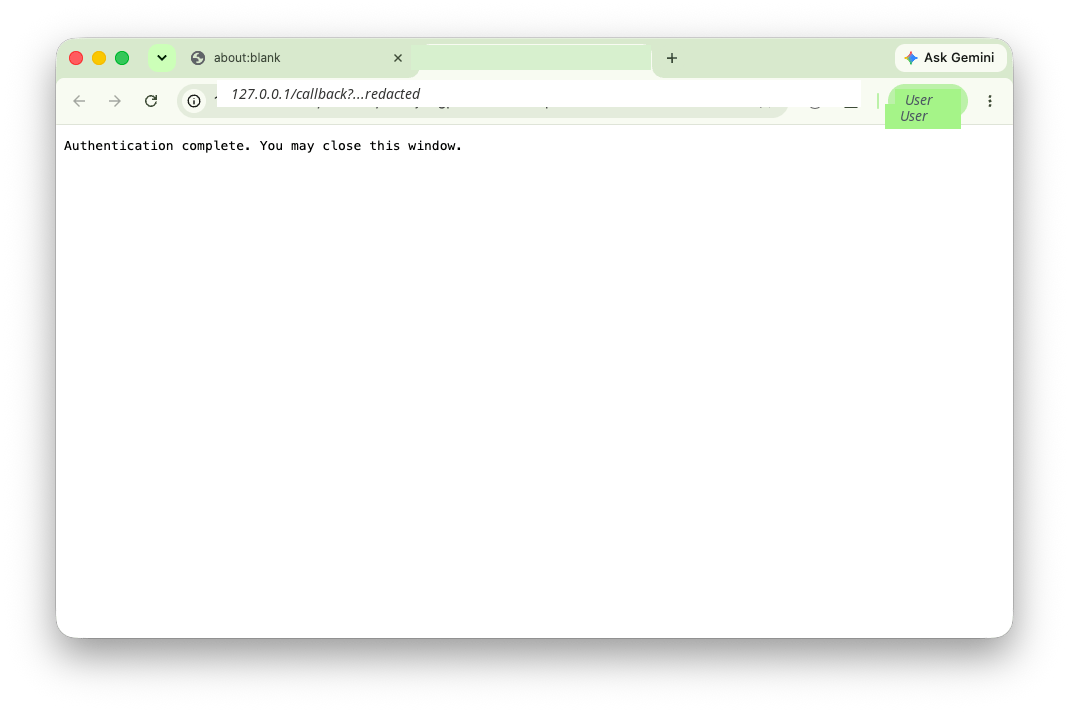
 You may see a local browser callback page that says authentication is complete.
 ## 5. Install the Kyberis Skill
Install the Kyberis skill for Codex:
```bash theme={null}
npx -y @kyberis-ai/agent-skills install codex
```
## 5. Install the Kyberis Skill
Install the Kyberis skill for Codex:
```bash theme={null}
npx -y @kyberis-ai/agent-skills install codex
```
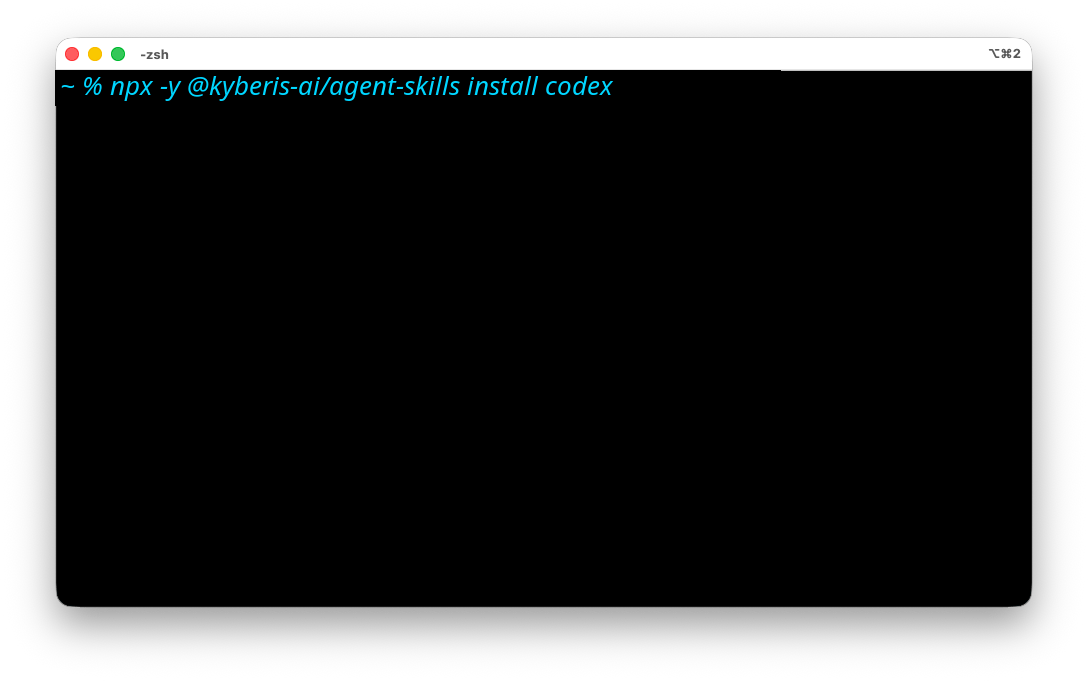 The installer writes the skill to `~/.codex/skills/kyberis`. Restart Codex Desktop after installation so the skill is available in new chats.
To check the installed skill later, run:
```bash theme={null}
npx -y @kyberis-ai/agent-skills status codex
```
## 6. Verify Tools and Skill Behavior
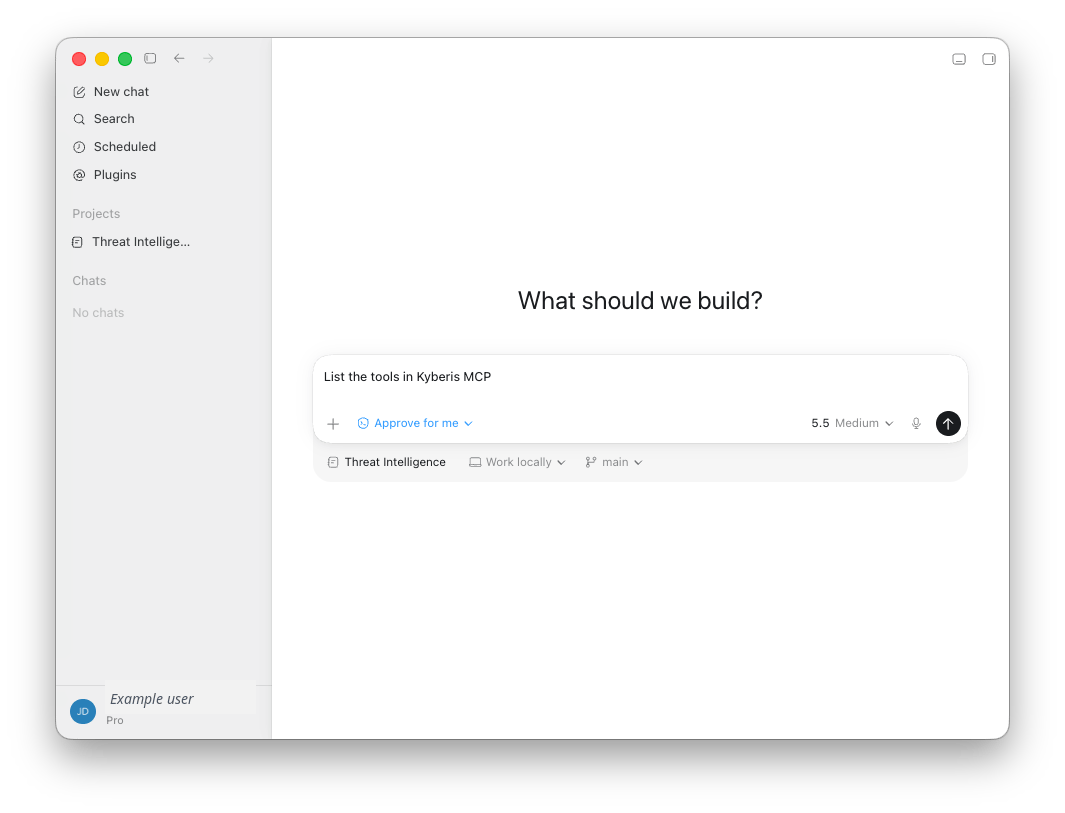
Start a new Codex Desktop chat in the workspace where you want to use Kyberis. Ask Codex to list the Kyberis MCP tools:
```text theme={null}
List the tools in Kyberis MCP.
```
The installer writes the skill to `~/.codex/skills/kyberis`. Restart Codex Desktop after installation so the skill is available in new chats.
To check the installed skill later, run:
```bash theme={null}
npx -y @kyberis-ai/agent-skills status codex
```
## 6. Verify Tools and Skill Behavior
Start a new Codex Desktop chat in the workspace where you want to use Kyberis. Ask Codex to list the Kyberis MCP tools:
```text theme={null}
List the tools in Kyberis MCP.
```
 Then verify that the skill is guiding the workflow:
```text theme={null}
Use the Kyberis skill. Resolve CVE-2024-3094 as a CVE, retrieve evidence for active exploitation, and run a CVE assessment. Preserve request IDs, evidence IDs, confidence, and caveats.
```
A working setup should call Kyberis tools through MCP, separate facts from inference, and preserve `request_id`, evidence IDs, confidence, and caveats in the response.
## Troubleshooting
| Problem | Fix |
| ------------------------------------------------ | ---------------------------------------------------------------------------------------------------------------------------------------------------------------- |
| No Kyberis tools are visible | Confirm the MCP server is enabled in **Settings** > **MCP servers**, restart Codex Desktop, and run `codex mcp login kyberis` again. |
| `codex mcp login kyberis` cannot find the server | Check the server name in Codex Desktop. If the UI saved it as `Kyberis`, run `codex mcp login Kyberis`. |
| Login opens but does not complete | Retry in the same browser profile you use for Kyberis. If the callback page never appears, restart Codex Desktop and run `codex mcp login kyberis` again. |
| Invalid MCP credentials | Remove the Kyberis MCP server, add it again with `https://mcp.kyberis.ai`, and repeat the login flow. Do not paste expired bearer tokens into the server config. |
| The skill is not available | Run `npx -y @kyberis-ai/agent-skills status codex`. If it is missing, run `npx -y @kyberis-ai/agent-skills install codex` and restart Codex Desktop. |
| Codex uses the wrong workspace or project | Select the intended workspace or project in Codex Desktop before verification. Re-run the verification prompt from that workspace. |
| A Kyberis tool returns `insufficient_scope` | Ask your Kyberis administrator for access to the required scope, then re-authenticate the MCP server. |
## Next Steps
Then verify that the skill is guiding the workflow:
```text theme={null}
Use the Kyberis skill. Resolve CVE-2024-3094 as a CVE, retrieve evidence for active exploitation, and run a CVE assessment. Preserve request IDs, evidence IDs, confidence, and caveats.
```
A working setup should call Kyberis tools through MCP, separate facts from inference, and preserve `request_id`, evidence IDs, confidence, and caveats in the response.
## Troubleshooting
| Problem | Fix |
| ------------------------------------------------ | ---------------------------------------------------------------------------------------------------------------------------------------------------------------- |
| No Kyberis tools are visible | Confirm the MCP server is enabled in **Settings** > **MCP servers**, restart Codex Desktop, and run `codex mcp login kyberis` again. |
| `codex mcp login kyberis` cannot find the server | Check the server name in Codex Desktop. If the UI saved it as `Kyberis`, run `codex mcp login Kyberis`. |
| Login opens but does not complete | Retry in the same browser profile you use for Kyberis. If the callback page never appears, restart Codex Desktop and run `codex mcp login kyberis` again. |
| Invalid MCP credentials | Remove the Kyberis MCP server, add it again with `https://mcp.kyberis.ai`, and repeat the login flow. Do not paste expired bearer tokens into the server config. |
| The skill is not available | Run `npx -y @kyberis-ai/agent-skills status codex`. If it is missing, run `npx -y @kyberis-ai/agent-skills install codex` and restart Codex Desktop. |
| Codex uses the wrong workspace or project | Select the intended workspace or project in Codex Desktop before verification. Re-run the verification prompt from that workspace. |
| A Kyberis tool returns `insufficient_scope` | Ask your Kyberis administrator for access to the required scope, then re-authenticate the MCP server. |
## Next Steps